BEIGELOCK BASIC MANUAL
USER GUIDE
Open BeigeLock
- Get your QR code
- Obtain a valid QR code from the owner (see Generate QR code).
- Turn on the lock
- Press and hold the Power button until the Power LED lights up.
- Scan the QR code
- Hold the QR code in front of the reader while the Power LED is steady.
- Successful scan:- The lock will open, the Power LED will turn off, and you will hear a confirmation tone.
- Unsuccessful scan:- The lock will remain closed, the Power LED will turn off, and you will hear two beeps.
Generate QR code
- Open the BeigeLock panel
- Use your phone’s browser to access the Beigelock control panel.
- Select QR code function
- Tap the “QR Code for Unlock” button.
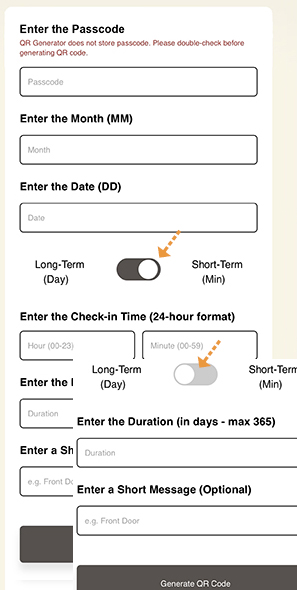
- Enter the passcode
- Input the passcode (default: 123456).
- Set date and time
- Enter the current date and time.
- Select Long-Term or Short-Term mode and Set the access duration
- Short-Term mode example: To allow access on July 4, between 16:00 and 18:00, select Short-Term mode, set the valid start time to July 4 at 16:00 and the duration to 120 min.
- Long-Term mode example: To allow access between July 4 00:00 and August 3 23:59, select Long-Term mode, set the valid start date to July 4 and the duration to 31 days.
- Combined example: To allow access from July 4, 12:00 to July 7, 12:00:
- (i) Generate two Short-Term QR codes for the beginning and ending periods:
- (ii) Generate one Long-Term QR code for the period in between:
- Select Short-Term mode
- Set from July 4, 12:00 with a duration of 720 minutes duration (for 12:00 to 23:59)
- Set from July 7, 00:00 with a duration of 720 minutes duration (for 00:00 to 12:00)
- Select Long-Term mode
- Set start date to July 5 and duration to 2 days
- Generate the QR code
- Tap “Generate QR Code”(Make sure your browser allows pop-ups so the QR code can be displayed.).
- Send to user
- Share the generated QR code with the user.
Power and Charging
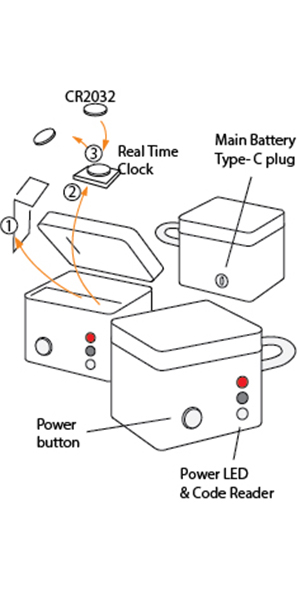
- Charge the Main Battery
- Remove the battery cover.
- Connect a charger to the Main Battery using a USB Type-C cable.
- Replace the Real-Time Clock Battery
- Open the BeigeLock
- Remove the Real-Time Clock (RTC) cover.
- Take the RTC module out.
- Replace the RTC Battery.